Key Takeaways
- 76% of remote workers reported new or worsening musculoskeletal pain since transitioning to working from home
- Separating your screen from your keyboard is the single most impactful change for laptop-based remote workers
- The 30-30 Rule (change position every 30 minutes for 30 seconds) is the most effective movement habit for home desk workers
- Video call posture – the “Zoom lean” – is a hidden source of neck and back strain that most remote workers overlook
- You can build a functional portable ergonomic kit for under $75 that works at any location
In This Guide
Remote work has become permanent for millions of people. What started as a temporary measure has evolved into the dominant model for knowledge workers, with over 58% of Americans who have desk jobs working remotely at least part-time (McKinsey, 2024).
Image Coming Soon
Editorial photo related to this section
But there is a problem. Most home offices were set up in a hurry, and many have never been properly optimized. A 2022 study in the International Journal of Environmental Research and Public Health found that 76% of remote workers reported new or worsening musculoskeletal pain since transitioning to working from home (Moretti et al., 2022).
The kitchen table, the couch, the bed – none of these were designed for 8-hour workdays. These ergonomic tips for remote workers are practical, evidence-based, and designed for the realities of working from home – where you may not have a dedicated office, a generous equipment budget, or an employer-funded assessment.
Why Remote Work Creates Unique Ergonomic Challenges
In a traditional office, someone has made at least basic decisions about desk heights, chair quality, and monitor placement. At home, you are that person. And remote work introduces challenges that do not exist in offices.
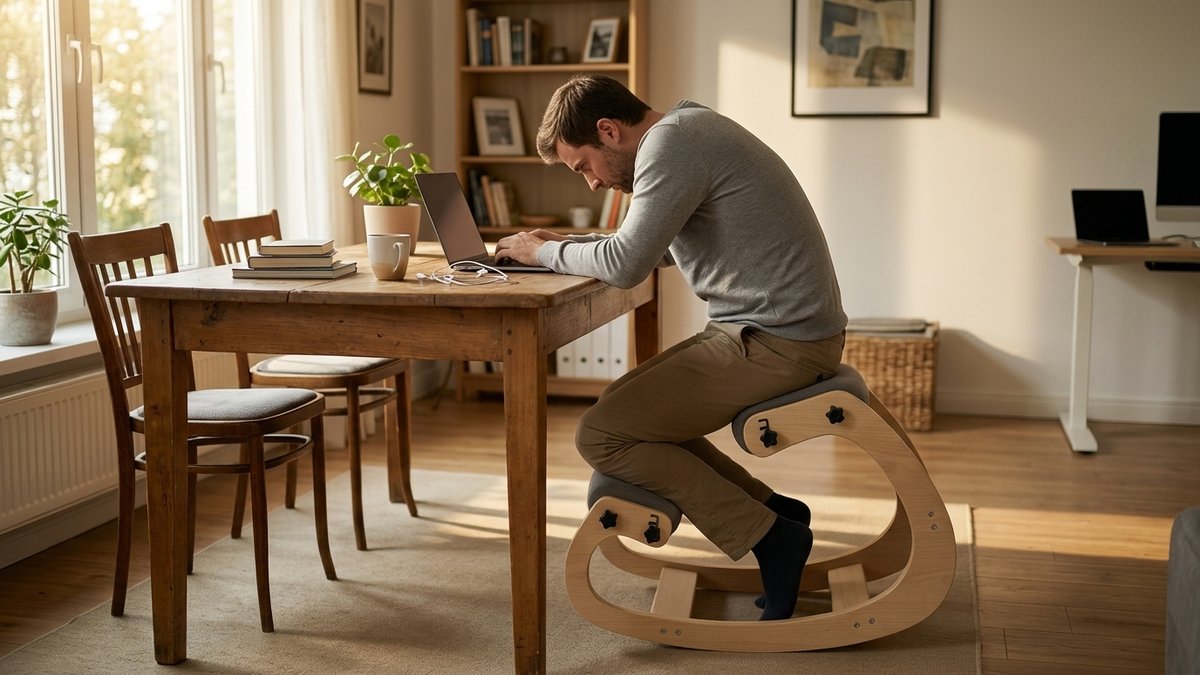
Improvised furniture. Dining tables are typically 30 inches high – appropriate for eating, too high for typing. Kitchen chairs lack lumbar support, armrests, and height adjustment. These furniture mismatches are the primary source of remote work pain.
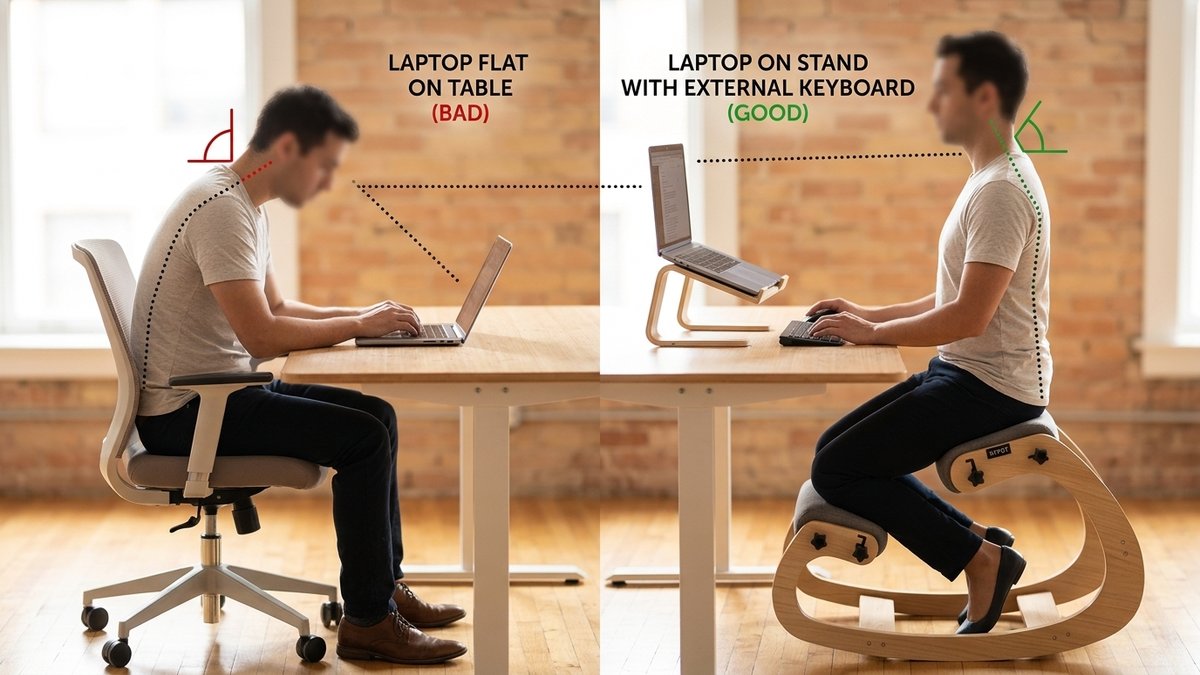
Laptop dependency. Most remote workers rely on laptops, which force a compromise: either the screen is too low (causing neck flexion) or the keyboard is too high (causing wrist extension). There is no laptop position that is simultaneously good for your neck and your wrists.
Blurred boundaries. Without the physical transition of a commute, remote workers log more hours and take fewer breaks. Microsoft found that remote workers increased their average workday by 46 minutes and took 30% fewer breaks compared to in-office work (Microsoft Work Trend Index, 2021).
The Essential Setup: 5 Non-Negotiable Adjustments
1. Separate your screen from your keyboard
If you use a laptop, this single change will have the greatest impact on your physical comfort. Connect an external keyboard and mouse, then raise your laptop on a stand or stack of books until the top of the screen is at eye level.
A basic external keyboard and mouse costs $15 to $25. For that investment, you eliminate the neck-versus-wrist compromise that laptops impose. See our full guide to home office setup on a budget for more low-cost solutions.
2. Set the correct chair height
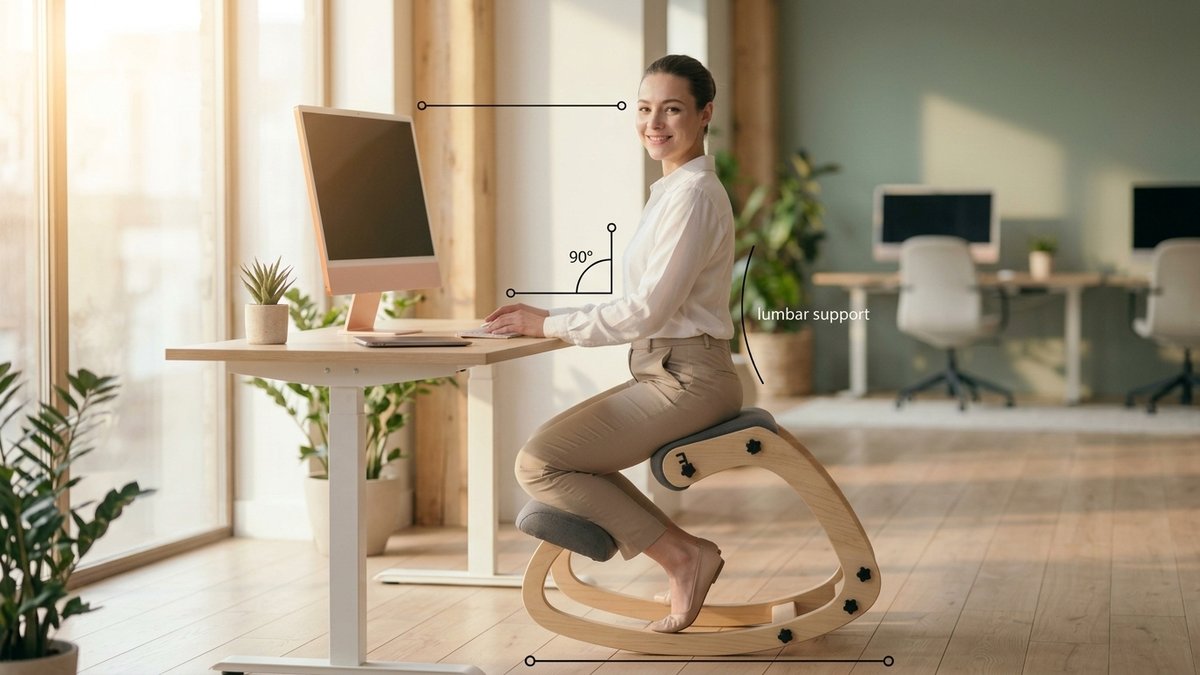
Your feet must rest flat on the floor with your thighs approximately parallel to the ground. If your dining chair is too high, place a footrest or box under your feet. If it is too low, add a firm cushion to raise your seating height.
When your chair height is wrong, compensatory postures cascade through your entire body: your shoulders elevate, your wrists angle, your back rounds, and your neck extends. Fixing chair height is the foundation upon which every other adjustment depends.
If your current home chair cannot hit the five adjustment benchmarks in this section, that is your signal to upgrade. Our Chair Finder Quiz matches remote workers to ergonomic chairs based on their specific home office constraints.
3. Support your lower back
If your chair does not have built-in lumbar support, roll a towel, small pillow, or sweater and place it against the curve of your lower back at approximately belt level. This encourages your lumbar spine to maintain its natural curve, which distributes spinal forces evenly and reduces disc pressure.
4. Position your arms correctly
Your elbows should rest at approximately 90 degrees with your forearms parallel to the desk surface. Your shoulders should be relaxed – not shrugged up toward your ears. Your mouse and keyboard should be at the same height, directly in front of you.
Reaching for a mouse positioned too far to the side is a common cause of shoulder and forearm pain in remote workers. Our desk ergonomics guide covers the complete workstation setup in detail.
5. Control your lighting
Position your desk so that natural light comes from the side, not from behind your screen (causing glare) or from behind you (reflecting off the screen). Eye strain from poor lighting leads to forward leaning, squinting, and headaches – all of which worsen posture.
Movement Strategies for the Home Environment
One advantage of working from home is freedom to move. There is no open-plan office full of colleagues watching you stretch by your desk. Use this freedom.
The 30-30 Rule
Every 30 minutes, change your position for at least 30 seconds. This could mean standing up, stretching, or simply walking to another room and back. A 2019 review in Applied Ergonomics found that breaking up sitting time every 30 minutes was the most effective frequency for reducing musculoskeletal discomfort (Waongenngarm et al., 2019).
Walk-and-talk meetings
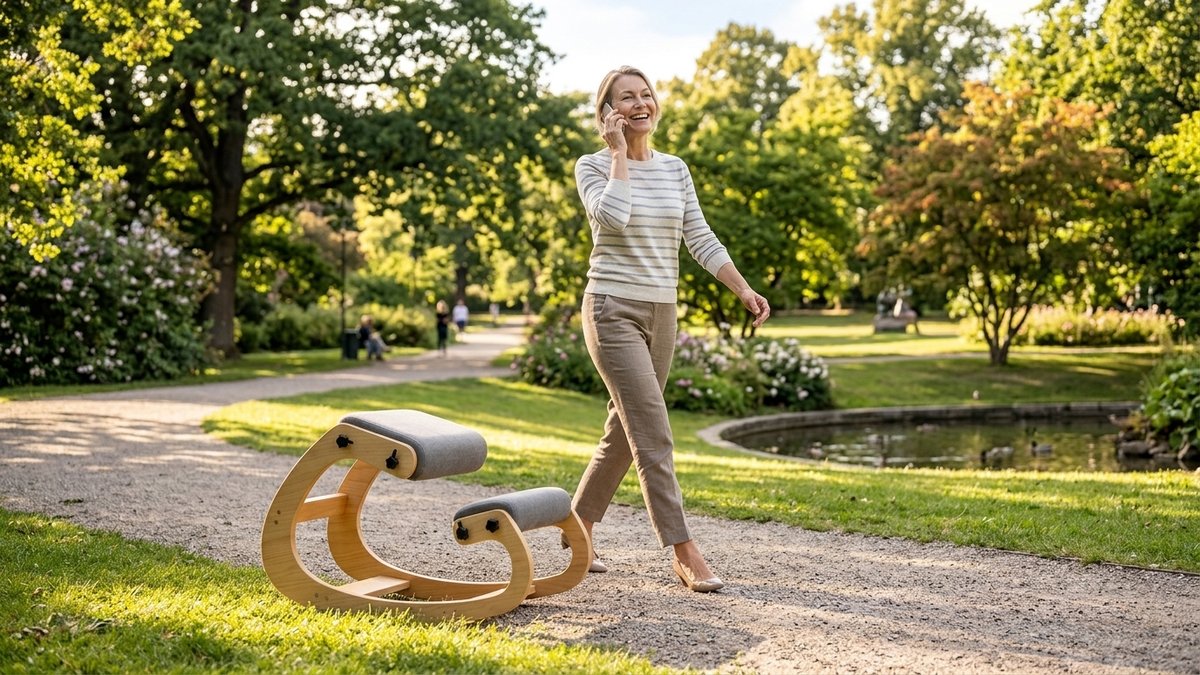
For audio-only calls that do not require screen sharing, take them while walking – outdoors if possible. Stanford research showed that walking increases creative thinking by an average of 60% compared to sitting (Oppezzo and Schwartz, 2014). For a complete stretching routine you can do at your desk, see our guide to stretches you can do at your desk.
Managing Multiple Work Locations
Many remote workers do not work at the same spot all day. You might start at your desk, move to the couch for a meeting, and work from a cafe in the afternoon. This variety can be beneficial – if you manage it correctly.
Use your most ergonomically optimized space for focused, intensive work. Save secondary locations like the couch, kitchen table, or cafe for shorter sessions under 1 hour or less demanding tasks like reading or brainstorming. Never spend extended periods at a suboptimal workstation.
The NYPOT Kneeling Chair weighs under 20 lbs and requires zero desk modifications. Its compact footprint fits spaces where traditional ergonomic chairs cannot – from a dedicated office to a kitchen table setup. See the NYPOT Kneeling Chair.
The Video Call Factor
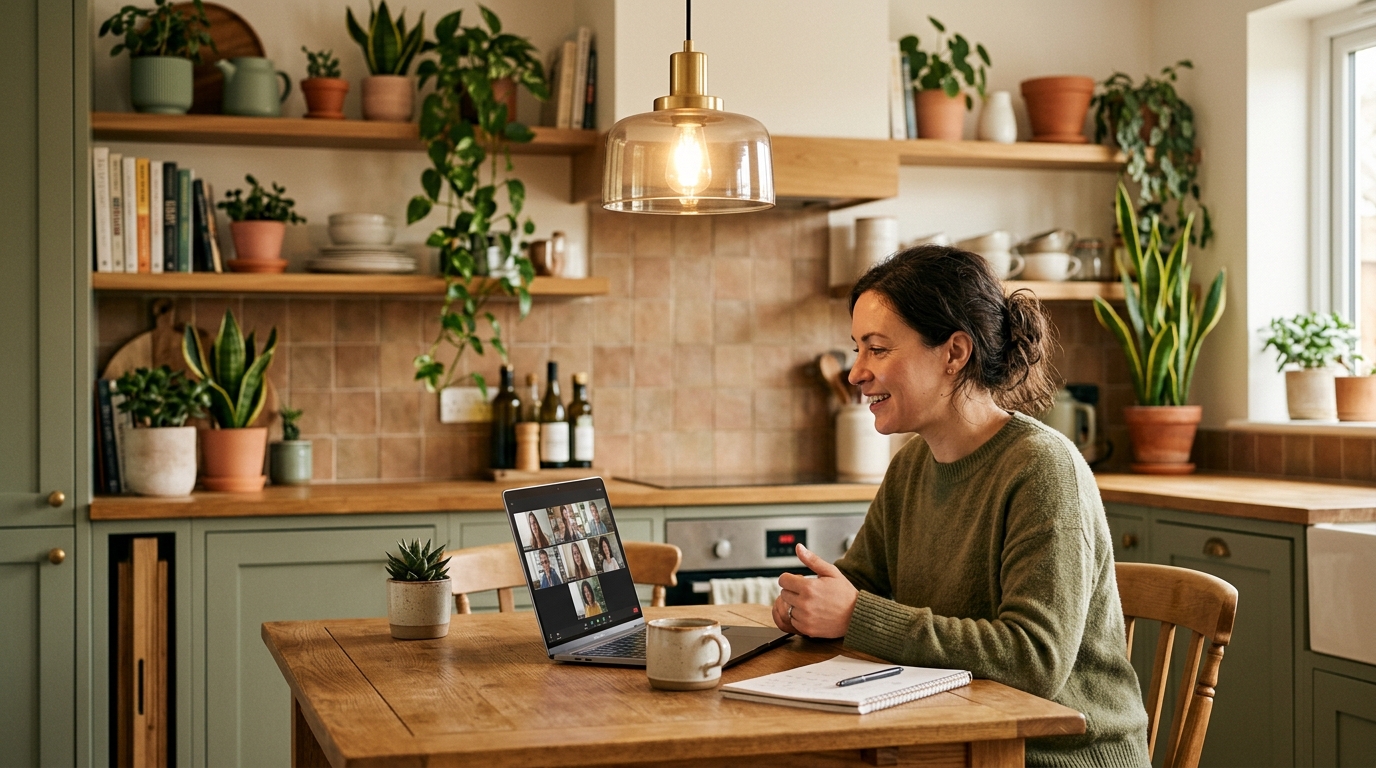
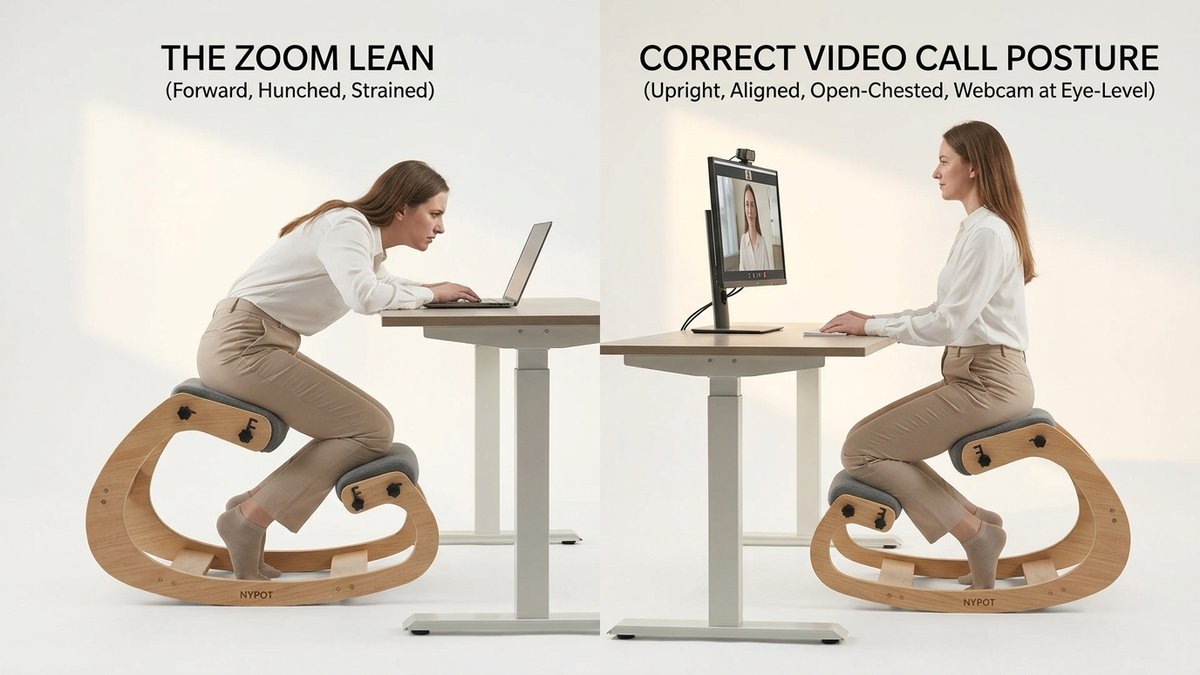
Remote workers spend an average of 4.5 hours per day on video calls (Owl Labs, 2022). Video calls create a unique postural challenge because we unconsciously lean toward the screen to appear engaged and read facial expressions.
To counteract Zoom lean:
- Place your webcam at eye level so you look straight ahead during calls
- Lean slightly back rather than forward – a 100 to 110-degree recline reduces disc pressure
- Turn off self-view to reduce the tendency to adjust your position based on the camera
- Stand for at least one meeting per day
- Use audio-only mode when possible and walk during the call
The Mental Side of Remote Ergonomics
Physical ergonomics and mental health are deeply interconnected. Stress, anxiety, and isolation manifest physically as muscle tension, shallow breathing, and postural collapse.
Designate a specific area for work and do not use it for leisure. This physical boundary supports the psychological separation between work and rest. When you leave the workspace, work is over.
Diaphragmatic breathing – slow, deep breaths that expand the belly rather than the chest – reduces muscle tension in the neck and shoulders within minutes (Ma et al., 2017). Practice 5 deep breaths at the start of each work block.
Building Your Daily Ergonomic Routine
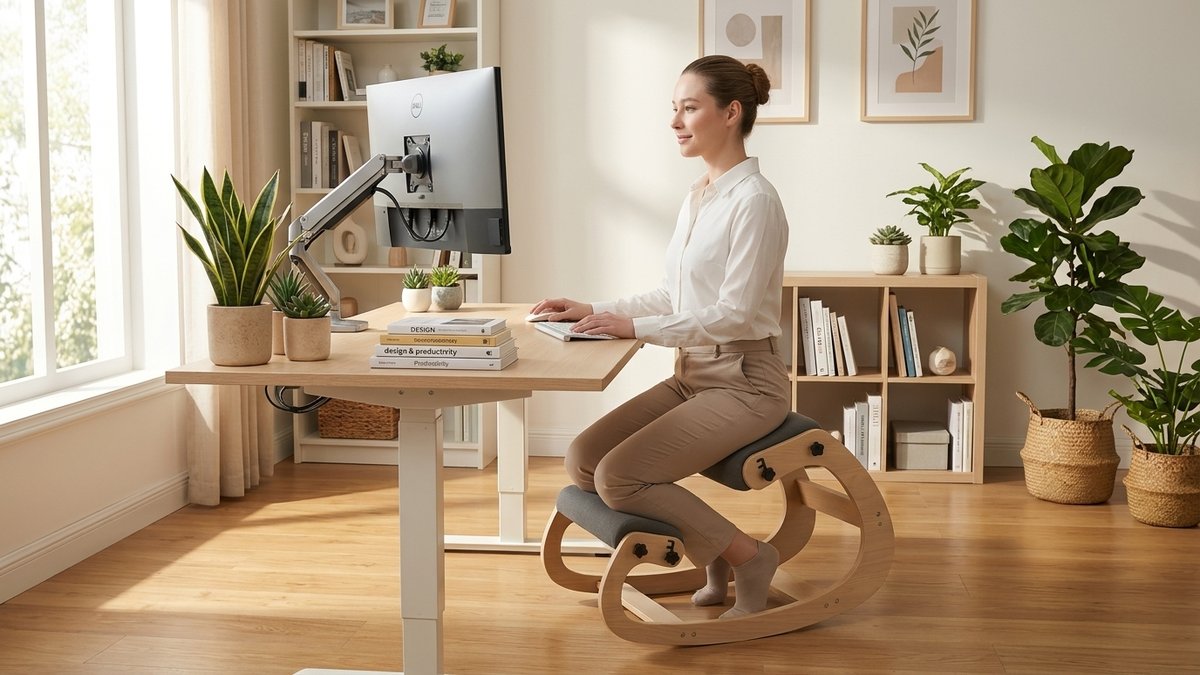
The most effective approach combines a properly configured workstation with consistent movement habits. Here is a framework you can start using today:
- Start of day: 2-minute setup check (screen height, chair position, lumbar support, lighting). 5 deep breaths.
- Every 30 minutes: 30-second position change. Stand, stretch, or walk briefly.
- Every 90 minutes: 5 to 10-minute break. Walk, stretch, hydrate.
- Midday: 15 to 30-minute walk or exercise session.
- End of day: 5-minute stretch routine. Physically leave the workspace.
These ergonomic tips for remote workers are not complicated. They do not require expensive equipment or specialized knowledge. What they require is consistency – small, repeated actions that protect your body over the long hours of working from home.
Helpful technology
Free or low-cost tools that support your ergonomic habits:
- Break reminder apps: Stretchly (free, open-source), Time Out (Mac), or Big Stretch (Windows)
- Standing desk timers: Stand Up! or Rise can prompt you to alternate between sitting and standing
- Screen temperature: Night Shift (Mac/iOS) and Night Light (Windows) reduce blue light emission in the evening

Your home office deserves the same ergonomic standard as a corporate one
Remote does not mean settling for worse furniture. Our 60-second quiz builds a personalized chair recommendation around your home workspace, body, and daily routine.
Keep Reading
References
- Ma, X., et al. (2017). “The effect of diaphragmatic breathing on attention, negative affect and stress in healthy adults.” Frontiers in Psychology, 8, 874.
- McKinsey. (2024). “Americans are embracing flexible work – and they want more of it.” McKinsey Global Institute.
- Microsoft. (2021). “The Next Great Disruption is Hybrid Work – Are We Ready?” Microsoft Work Trend Index.
- Moretti, A., et al. (2022). “Prevalence of musculoskeletal complaints among remote workers during the COVID-19 pandemic.” International Journal of Environmental Research and Public Health, 19(3), 1554.
- Oppezzo, M., and Schwartz, D. L. (2014). “Give your ideas some legs: The positive effect of walking on creative thinking.” Journal of Experimental Psychology: Learning, Memory, and Cognition, 40(4), 1142-1152.
- Owl Labs. (2022). “State of Remote Work.” Owl Labs Annual Report.
- Waongenngarm, P., et al. (2019). “The effects of breaks on low back pain, discomfort, and work productivity in office workers.” Applied Ergonomics, 77, 60-68.
This article contains affiliate links. ErgoLife Foundation may earn a commission at no additional cost to you. All recommendations are based on our independent research and mission to improve workplace wellness.